
Not Receiving University Emails? Set Up Auto-Forwarding
Student Email Accounts and Auto-Forwarding Setup
- Campus Webmail (t[Student_ID]@ntut.edu.tw): The default email address used by official university systems, such as the Course Add/Drop system and Office of Student Affairs notifications. Access this account through the university’s Webmail platform.
- Student Gmail (t[Student_ID]@ntut.org.tw): Your Google Workspace for Education account. Notifications from university administrative systems may not be sent to this account.
To avoid missing important university notifications, please set up auto-forwarding to your frequently used email address if you do not regularly check Campus Webmail.
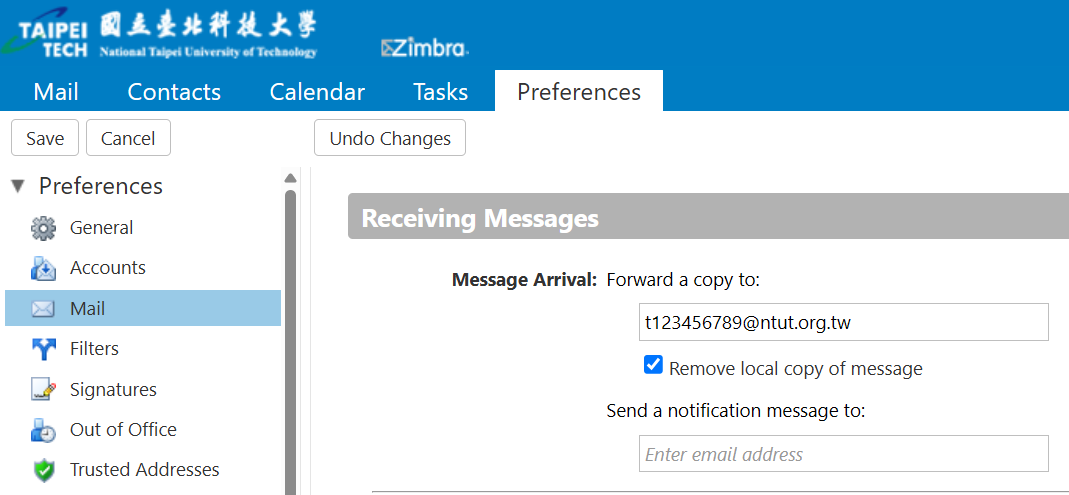
- Log in: Go to Taipei Tech Portal > Information Services > Web Mail.
- Navigate: Click Preferences, then select Mail from the menu on the left.
- Configure: Under Receiving Messages, find Message Arrival: Forward a copy to:.
- Save: Enter your frequently used email address, then click Save in the top-left corner.
How to Prevent University Emails from Going to Spam
To help prevent university emails, such as messages about advising, internships, research projects, and scholarships, from being sent to Spam, create a Gmail filter for each university email domain.
- Open Gmail in a web browser on your computer.
- Click the Settings gear icon in the top right, then select See all settings.
- Go to Filters and Blocked Addresses, then click Create a new filter.
- In the From field, enter @ntut.edu.tw.
- Click Create filter, select Never send it to Spam, then click Create filter again to save.
- Repeat the same steps to create another filter for @mail.ntut.edu.tw.
Tip: You can also add your advisor’s and department office’s email addresses to your Google Contacts. Check your Spam folder regularly for any important messages.
Still Not Receiving Gmail Messages on Your iPhone?
If you have completed the settings above but still cannot receive Gmail messages on your iPhone or other iOS devices, please manually update the Gmail app first and refer to Google’s latest official troubleshooting guide:
Google’s Gmail Troubleshooting Guide for iPhone and iPad (Open new window)